
Activating your BotDaddy licence
There's one rule here, and it answers nearly every licence question: a licence binds to one machine, and you unbind it before moving it.
Activating
Your licence key arrives by email after checkout, in the form
XXXX-XXXX-XXXX-XXXX. Paste it into the License Key box and press
Activate & bind.
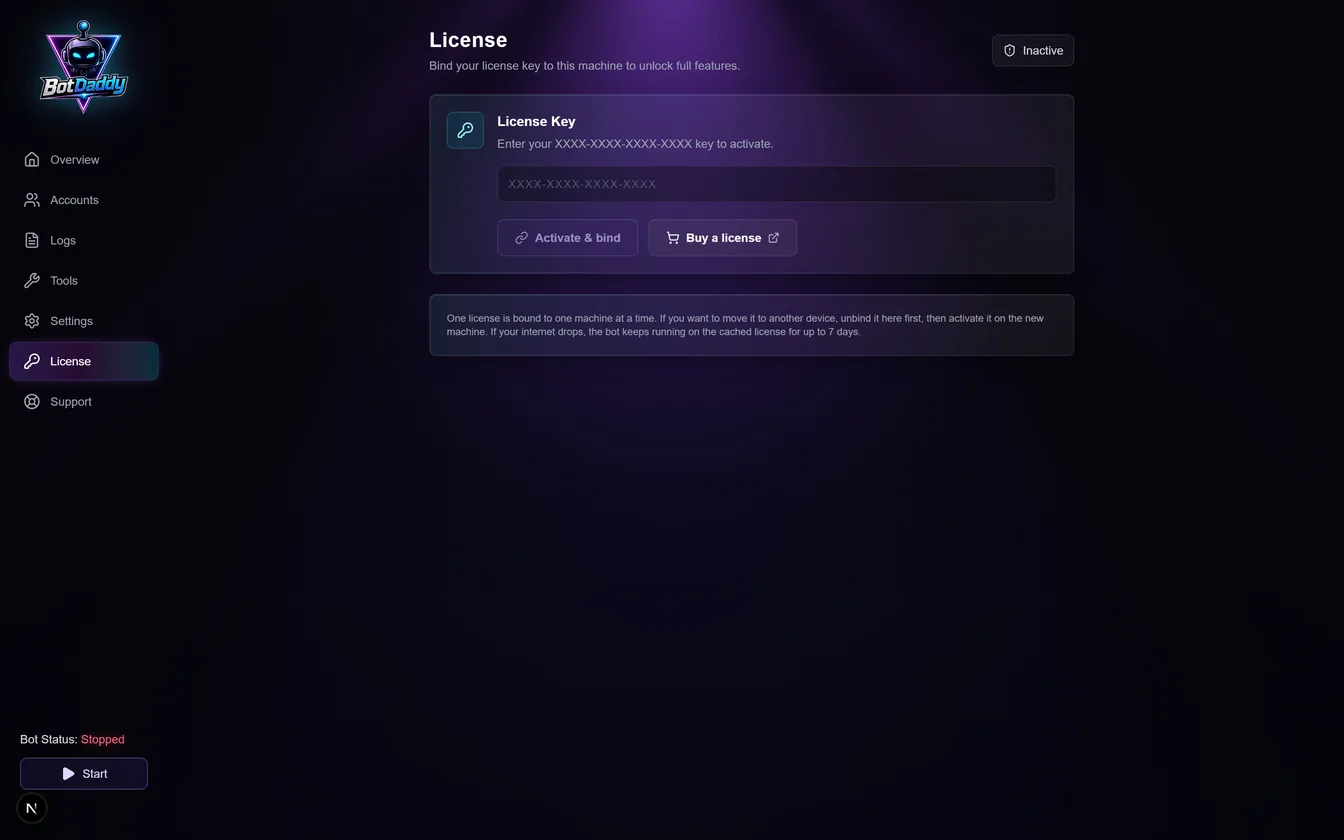
Buy a license opens the shop if you don't have a key yet. If you'd rather try it first, ask for a trial key on our Discord.
What a trial can't run
Two actions need a paid plan: Clear Villages and Mystic Realm. On a trial they show an amber Paid plan padlock where the on/off switch would be. Every other action runs normally.
You can still open a locked action and fill in its settings — it starts working the moment you upgrade, with nothing to redo.
If you start the bot with one switched on, the run is not refused. It runs everything else and gives you one warning naming the actions and how many accounts were affected. An account whose only enabled action is a locked one is skipped for that cycle, the same as an account with nothing switched on — it isn't an error and the account isn't disabled.
Your current plan is shown on this screen.
One machine at a time
To move a licence to another computer, unbind it here first, then activate on the new machine.
If activation on a new PC is refused, that's why: the key is still bound to the old one.
If your internet drops
The bot keeps running on the cached licence for up to 7 days without a connection. You don't need to be online for day-to-day running — only to activate, to unbind, or once the cache expires.
Troubleshooting
I lost my key. It's on your account page, masked, with a regeneration option.
Should I regenerate? Only if you genuinely can't recover the original. Regenerating stops the old key working, and any machine still holding it stops validating.
I'm reinstalling Windows or changing hardware. Unbind before you wipe if you can. If you can't, contact support — it's a normal request.
Activation on my second PC was refused. Unbind the first machine.
The badge reads Inactive. Either the licence expired, or no valid licence is bound to this machine. Renew and activate again.
I've been offline over a week. The cached licence expires and the bot stops until it can check in again.
Does the licence limit how many accounts I can run? No. It's per machine, however many accounts you run on it.