
Rebuild Instances
Rebuild Instances lives on the Tools screen. Despite the name, it's four tools in one card: rebuilding broken instances, copying the game's files into new ones, renaming instances after their accounts, and (on MuMu Player) shrinking instance disks. It works on whichever emulator you've chosen in Settings → Emulator, LDPlayer or MuMu Player, and it only runs while the bot is stopped.
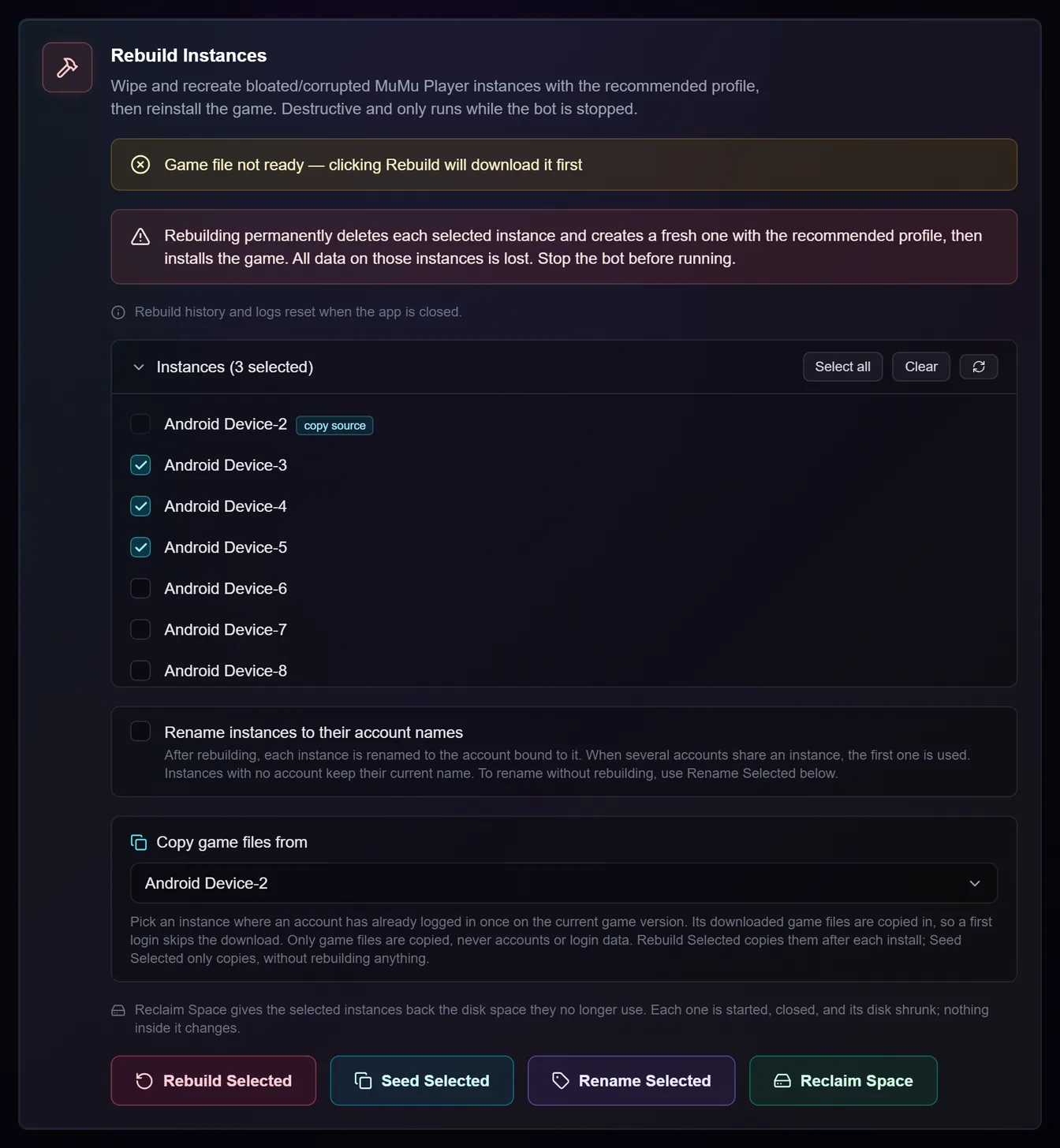
The four buttons at a glance
| Button | What it does | Deletes anything? |
|---|---|---|
| Rebuild Selected | Deletes each ticked instance, makes a fresh one in its place with the settings BotDaddy expects, and installs the game. | Yes, everything on those instances |
| Seed Selected | Copies the game's downloaded files from the copy source into each ticked instance. | No |
| Rename Selected | Names each ticked instance after the account bound to it. | No |
| Reclaim Space | Shrinks each ticked instance's disk file back to what it really uses. MuMu Player only. | No |
Every button works on the instances you tick. A button stays greyed out until at least one is ticked, and Seed Selected also needs a copy source picked under Copy game files from.
Picking instances
The list shows every instance your emulator has, under their own names. Tick them one by one, or use Select all and Clear. The refresh button next to them re-reads the list from the emulator, and the arrow beside Instances folds the list away when it's long.
The instance picked as the copy source is marked copy source and can't be ticked: it is only ever read from.
Rebuild Selected
Rebuilding is the fix for an instance that has gone bad: one that boots unreliably, keeps failing while the instances next to it are fine, or was set up by another bot in a way BotDaddy doesn't expect.
This is destructive. Each ticked instance is permanently deleted and a fresh one made in its place. Everything on it is lost, including the game's saved login, so the account signs in again on its next run. Make sure each account's credentials are filled in before you rebuild its instance.
Press Rebuild Selected, check the confirmation (it says how many instances will be wiped, and which instance the game files will be copied from), and press Yes, wipe & rebuild. For each instance, BotDaddy then:
- deletes the instance and creates a fresh one with the recommended settings;
- starts it, trying up to three times if it doesn't finish booting (each try waits as long as Settings → Android Booting Timeout);
- installs the version of Viking Rise BotDaddy supports;
- copies the game files into it, if you picked a copy source (see below);
- renames it after its account, if you ticked the rename option;
- closes it.
Instances are rebuilt several at a time: as many as your worker count in Settings → Runtime.
If the game file hasn't been downloaded yet, the card says so, and pressing Rebuild Selected downloads it first, then shows the confirmation.
Your accounts stay bound to the rebuilt instances. On LDPlayer the new instance gets a new number and every account that was on the old one is moved to it automatically. On MuMu Player the new instance is made at the same number, so nothing needs to move.
Before you rebuild, try the gentle fix. For a game that's out of date or missing, Update / Install Game on the account's row is enough, and it deletes nothing.
Rename instances to their account names
Tick this before a rebuild and each rebuilt instance is named after the account bound to it, so the emulator's own instance list reads like your account list. It follows the same rules as Rename Selected below. If renaming is all you want, you don't need a rebuild at all.
Copy game files from, and Seed Selected
The first time an account logs in on a new instance, the game downloads about 2.2 GB of extra files before it reaches the city. That takes 5 to 9 minutes per instance, and several new instances at once share your connection, so each one gets slower still.
Those files are the same on every instance with the same game version, so one instance that already has them can supply the rest. With the files copied in, a first login takes about a minute and a half and downloads a few megabytes.
Under Copy game files from, pick an instance where an account has already logged in once on the current game version. Then either:
- press Rebuild Selected, which copies the files into each instance right after the game is installed on it; or
- press Seed Selected, which only copies the files into the ticked instances. Nothing is wiped, rebuilt or installed.
The same Copy game files from choice appears in the Update / Install Game window on the Accounts screen, so installing the game on new instances can fill them in the same go.
Only the game's downloaded files are copied: never accounts, logins or anything that identifies the instance. Each instance makes its own of those the first time the game starts on it.
What to expect:
- The source is checked first. If it hasn't finished its download, or holds a different game version, a rebuild stops before anything is wiped and says why. With Seed Selected, an instance on a different game version is skipped and says which version it has.
- An instance that already has the files is left alone and reported as already having them.
- An open instance is skipped by Seed Selected. Close it and run it again; copying files under a running game could hand it files it is in the middle of using.
- A source that was closed is started, read and closed again. One that was already open is read and left open.
- A copy that stops moving for a minute is given up on, and that instance is closed. Its row says the copy stalled; run Seed Selected on it again later. The rest of the run carries on.
- A failed copy never fails a rebuild. The instance still works and the game is installed; it simply downloads the files itself on its first login.
- Disk space. A run needs about 6 GB free on your PC while it runs. Each instance being copied into needs about 6 GB free inside it, and the source about 3 GB. The files travel as one package that is unpacked and deleted.
- Copied-into instances end up about 2.4 GB larger on your PC than ones that downloaded the files themselves, because an emulator's disk file keeps the room the package used. On MuMu Player, Reclaim Space gives it back. LDPlayer has no equivalent.
- It works on LDPlayer 9 (Android 9), LDPlayer 14 and MuMu Player's Android 12. Anything older than Android 9 is skipped and downloads on its first login as before.
Rename Selected
Rename Selected gives each ticked instance the name of the account bound to it, and does nothing else. Nothing is wiped, installed, started or closed: only the label changes, in the emulator's own list and on this screen. It takes about a second per instance, on LDPlayer and on MuMu Player.
Each row says what happened:
- Renamed to name: done.
- Already called name: it already had its account's name.
- Keeping the name name — no account bound to this instance: there's nothing to name it after.
- Keeping the name name — another instance is already called name: names are never duplicated. If two of your accounts have the same name, the first instance renamed gets it and the second keeps its own.
- Close this instance first, then rename it: the instance is open. An emulator writes its own copy of an open instance's settings back when it closes it, which would quietly undo the new name.
Where several accounts share one instance (two characters with Account Switch), the first one bound to it gives the name.
Renaming never breaks an account. Accounts are bound to an instance's number, not its name, so an account keeps running on the same instance and simply shows the new name.
Reclaim Space (MuMu Player only)
An instance's disk file on your PC grows as Android writes to it, and it never shrinks on its own, not even after Android deletes what it wrote. Installing and updating the game leave some of that behind, and so does copying game files. Over time an instance takes up more of your drive than it actually uses.
Reclaim Space gives that room back. Tick the instances and press it. Each one is started, marks the space it no longer uses, is shut down, and then its disk file is shrunk to what it really holds. That's usually about 25 seconds per instance on an SSD, longer on a hard disk. Nothing inside the instance changes: its game, its files and its login are exactly as they were. Each finished row says how much it freed, and the summary adds them up. It does the same job as MuMu Player's own Disk Cleanup, for many instances at once.
What to expect:
- An open instance is skipped. Close it and run it again.
- A disk is only ever shrunk after a clean shutdown. If an instance won't shut down properly, its disk is left exactly as it was, and its row says so. Shrinking a disk that wasn't shut down cleanly is how disks get damaged.
- The drive needs room for a copy of the instance while it shrinks: its size plus about 1 GB. An instance without that much free space is left alone, and its row says how much it needs.
- If you press Stop, nothing new is started, and a disk already being shrunk is allowed to finish (usually a few seconds).
- If you close BotDaddy while a disk is being shrunk, the shrinking carries on by itself and finishes. Don't start that instance in MuMu Player until it has.
- A row saying an earlier disk cleanup did not finish means a shrink was interrupted, by a power cut for example. Don't rebuild or delete that instance: its leftover files may be the only copy of it. Leave it closed and ask us for help.
- The copy source can't be ticked. Clear Copy game files from first.
- On LDPlayer the button isn't shown. LDPlayer's disks are a different kind that this can't shrink.
While a run is going
A progress bar shows how many instances are done, and each row shows its own progress and ends as success, skipped or failed. Hover over the badge for the reason; Rename and Reclaim rows say it in place. Stop finishes the current step and then stops. A rename in progress finishes the instance it is on, so nothing is left half-named, and a disk being shrunk is always allowed to finish.
The run's history and per-row messages are cleared when you close BotDaddy.
Troubleshooting
The buttons are greyed out. Tick at least one instance. Seed Selected also needs an instance picked under Copy game files from.
Rebuild is refused. The bot is running. Stop it first.
An instance didn't finish booting during a rebuild. It is shut down and started again, up to three tries. If instances keep failing, lower the worker count in Settings so fewer boot at once. Raise Android Booting Timeout only if a single instance fails with nothing else running.
LDPlayer renumbered everything after a rebuild. Restart the app; it re-reads the list.
A MuMu instance couldn't be renamed during a rebuild. It is still rebuilt with the game installed, and keeps the name MuMu gave it. Run Rename Selected on it afterwards.
The copy source says it hasn't finished its download. Log an account in on it once, let it reach the city, and try again.
I closed the app mid-run. That run's history is lost. Check your emulator's instance list to see where it got to, and run again on the instances that weren't finished.
What it doesn't do
- Rebuild doesn't keep anything on an instance. It's a wipe.
- It doesn't create extra instances: it only replaces the ones you tick. Make new instances in LDMultiPlayer or MuMu Player.
- It never picks a copy source by itself, and never copies accounts, logins or instance identity.
- Rename Selected changes only the name, never the instance's settings, its game, or which account is bound to it.
- Reclaim Space doesn't delete anything inside an instance, and works on MuMu Player only.