
MuMu Player setup for Viking Rise
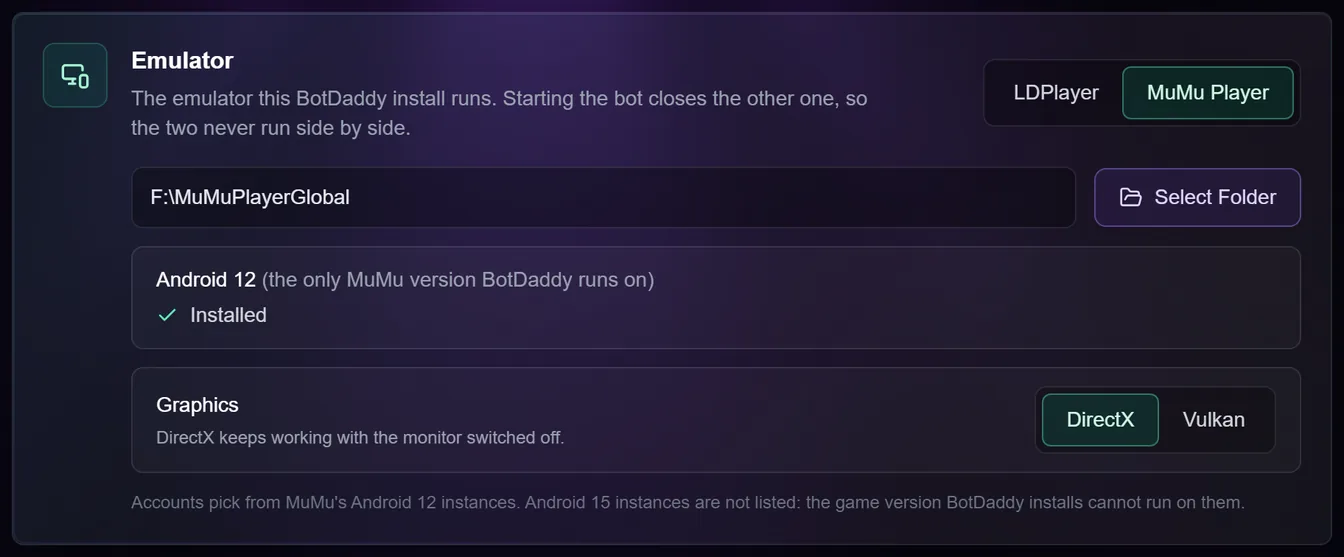
BotDaddy can run your accounts on MuMu Player instead of LDPlayer. Each BotDaddy install runs one emulator, and you choose which one in Settings → Emulator. Everything else works the same way: the same Accounts screen, the same actions and the same Start button.
BotDaddy runs on MuMu's Android 12 instances only.
Why you might pick it
- Faster boots. On our test PC, a MuMu Android 12 instance was ready about 12–15 seconds after BotDaddy started it, where LDPlayer usually took 20–40 seconds. With the same account, the game reached the city 20–35 seconds sooner.
- Lighter instances. The game used about 1.2 GB of memory on MuMu against about 1.4 GB on LDPlayer, and MuMu kept the PC's processor noticeably less busy.
That's one PC. Your numbers will differ, but the direction should hold.
Setting it up
- Install MuMu Player, the global version from mumuplayer.com. If you don't have LDPlayer, BotDaddy's own installer shows an Emulator Setup page because it couldn't find it. Choose Skip for now there.
- Settings → Emulator → MuMu Player. BotDaddy finds MuMu's folder on its
own, from MuMu Player's installer, and shows it on the card. To point it
somewhere else, press Select Folder and pick the folder MuMu Player is
installed in: the one with a folder called
nx_maininside it. If Settings says MuMu Player was not found, install it with its own installer and choose it again. - Android 12. The Emulator card shows whether MuMu's Android 12 is installed. If it says Not installed, press Install Android 12. MuMu downloads about 935 MB and installs it in the background, which takes about a minute on a fast connection. No Windows permission prompt appears. When it finishes, MuMu has also created your first Android 12 instance.
- Give your accounts instances. Make the instances in MuMu Player, choosing Android 12 when it asks. Accounts you set up on LDPlayer are put on the MuMu instance with the same number by themselves (see below); pick one on the Accounts screen for any that aren't. Then select the accounts and press Update / Install Game to put the game on them.
- Start the bot. It logs each account in the first time it runs it, from the credentials saved on the account.
Make new instances rather than copying one. A copy made in MuMu Player shares its original's advertising ID. To spare each new instance the game's 2 GB first-login download, pick an instance that has already logged in under Copy game files from in the Update / Install Game window. If an instance goes bad, Tools → Rebuild Instances recreates it at the same number with the game installed, and can rename it after its account. Both are explained in the Rebuild Instances guide.
You don't need to change anything inside MuMu. Before each instance starts, BotDaddy sets it to what the bot needs: a 640×480 screen, 30 frames a second, 2 processor cores and 3 GB of memory, plus the graphics mode you pick under Settings → Emulator → Graphics.
Moving your accounts over from LDPlayer
Each account remembers one instance per emulator:
- An account you've already given a MuMu instance goes back on that one.
- An account with no MuMu instance yet is put on the MuMu instance with the same number as its LDPlayer one: the account on LDPlayer instance 5 goes onto MuMu instance 5. Settings tells you how many were moved.
- Your LDPlayer choices are kept. Switch back and every account is on its old LDPlayer instance again; switch to MuMu once more and the MuMu ones come back. Switching from MuMu to LDPlayer works the same way round.
You can't switch emulator while the bot is running. The switch is greyed out until you stop it.
Check who's logged in on each MuMu instance. The bot plays whoever is logged in; it doesn't check which character that is. Moving by number is only right if your MuMu instance 5 is meant for the same character as your LDPlayer instance 5. If a MuMu instance holds someone else (from testing, or an older setup), log that character out or rebuild the instance before starting the bot, or pick a different instance for the account.
MuMu doesn't have that number yet. The account waits without an instance, and the bot skips it with one line in the log. Every time the bot starts it looks again, so once you make that instance in MuMu Player the account is put on it. You can also pick one for it on the Accounts screen.
Another account is already on that number in MuMu. The account isn't put there, because that instance belongs to a different character. It waits without an instance, and the log names both accounts. Pick an instance for it on the Accounts screen.
Two accounts shared one LDPlayer instance (two characters on one instance, with Account Switch). They move together, onto the same MuMu instance.
You pick or clear an account's instance yourself after switching. Your choice stands. The bot never moves that account by number on MuMu again, not even after switching emulator away and back. An account you cleared stays without a MuMu instance until you pick one for it.
LDPlayer and MuMu on one PC
Starting the bot always closes the emulator you're not using, because the two can't share a PC while the bot runs: a MuMu instance and an LDPlayer instance with the same number fight over the same connection. The activity feed says so: "Closed LDPlayer — this install runs MuMu Player". With LDPlayer chosen, starting the bot closes MuMu Player instead.
The same goes for other games. While the bot runs, BotDaddy closes any MuMu instance it isn't using, just as it does with LDPlayer. Play on a different emulator, or stop the bot first.
Graphics: DirectX or Vulkan
Settings → Emulator → Graphics sets how MuMu draws the game. Pick DirectX, the default, unless you have a reason not to: it keeps working with your monitor switched off, and every PC that runs BotDaddy supports it. Vulkan is what MuMu calls High performance (DirectX is Stable there). It needs a monitor connected and switched on, and a graphics card that supports it. The game and the bot's screen reading work the same in both. A change reaches each instance the next time it starts, even while the bot is running.
With Vulkan, MuMu can't start an instance while no monitor is connected, and switching a monitor off at its power button counts as disconnecting it. Instances that are already running keep going; an instance that starts while the monitor is off opens but never finishes loading Android. BotDaddy spots this within seconds, then:
- stops starting new instances;
- says so in the activity feed: "MuMu can't start emulators: no display is connected";
- lets the accounts that are already running carry on;
- checks about once a minute whether MuMu can draw again, and starts emulators by itself as soon as it can ("A display is connected again — starting emulators").
No account is failed or counted against its retries while it waits. To keep the bot running with your monitor off, set graphics to DirectX, or plug a dummy display plug (a small HDMI or DisplayPort adapter) into a spare port on your graphics card.
What BotDaddy handles for you
- MuMu Player is closed when the bot wants an instance. It opens MuMu for you. Instances are started through MuMu's main window, so nothing can start while that window is shut.
- A MuMu window crashes. BotDaddy notices the instance left running behind it, clears it, and starts the instance again.
- One MuMu instance freezes. The others keep working. BotDaddy checks which instances are running by asking Windows rather than MuMu Player, because MuMu answers those questions one at a time and a frozen instance can hold every other question up behind it. The frozen instance is dealt with like any instance that stops responding.
- BotDaddy itself crashes. MuMu's instances are closed, the same as LDPlayer's, so nothing is left running on your PC. See The engine watchdog.
- Windows Security slows the instances down. With MuMu chosen, the Antivirus exclusions card in Settings lists MuMu's folder and programs instead of LDPlayer's, and adds them in one click.
- MuMu shows an ad over the game. MuMu's own app store, built into every instance, can cover Viking Rise with an ad for another game. BotDaddy hides it before starting the game. See Emulator ads.
Troubleshooting
Every instance suddenly stops booting. The most common cause is the one above: the monitor is off and graphics are set to Vulkan. The bot recognises that and waits for the monitor instead of trying repairs.
MuMu Player stops answering. The bot closes MuMu completely and opens it again. Every instance closes at once and reopens, and the activity feed says "Host recovery: restarting the emulator itself". Accounts that were part-way through are picked up afterwards. The bot won't do this while Rebuild Instances or Install Game is running, won't repeat it straight away if it didn't help, and never does it because of a switched-off monitor.
It keeps happening, especially on a big farm. The usual cause is MuMu's own background service, which keeps MuMu's main window too busy to answer. Switching it off takes a minute: see Disable MuMu Player's remote service.
My instances take up more disk space than they should. On the Tools screen, Rebuild Instances has a Reclaim Space button. It shrinks each selected instance's disk back to what the instance actually uses, without changing anything inside it. Copying game files onto an instance (the Copy game files from option in Rebuild Instances and Update / Install Game) leaves about 2.4 GB of such space behind, so a run that copied game files is a good time to use it afterwards. See Rebuild Instances.
Install Android 12 doesn't start. Install it from MuMu's own window instead: create a new instance and choose Android 12, and MuMu downloads it there.
An instance isn't in the account's instance picker. It's probably an Android 15 instance. The game version BotDaddy installs can't run on Android 15, so those aren't listed. Create an Android 12 instance instead.
The bot stopped working after MuMu updated itself. MuMu updates on its
own, and an update can change how it behaves. Tell us in
our Discord and attach your latest backend log
from Documents\BotDaddy\logs.
What it doesn't do
- It doesn't run on MuMu's Android 15 instances.
- It doesn't run LDPlayer and MuMu Player at the same time.
- It never copies MuMu instances. Rebuild Instances makes a new one at the same number.
- It never moves an account that already has a MuMu instance of its own, and it never makes MuMu instances for you: moving by number only uses instances you've made.
- It changes no MuMu settings other than each instance's screen size, frame rate, processor cores, memory and graphics mode. Inside each instance it also keeps MuMu's app store and MuMu Desktop from drawing ads over the game.
- It doesn't turn your monitor on or keep it awake. With Vulkan graphics and the monitor off, it waits.