
Settings, workers and timeouts
Three things on this screen matter and the rest are for slow machines: which emulator you run, where it's installed, and the worker count — and the worker count is the single biggest lever on whether your fleet is stable.
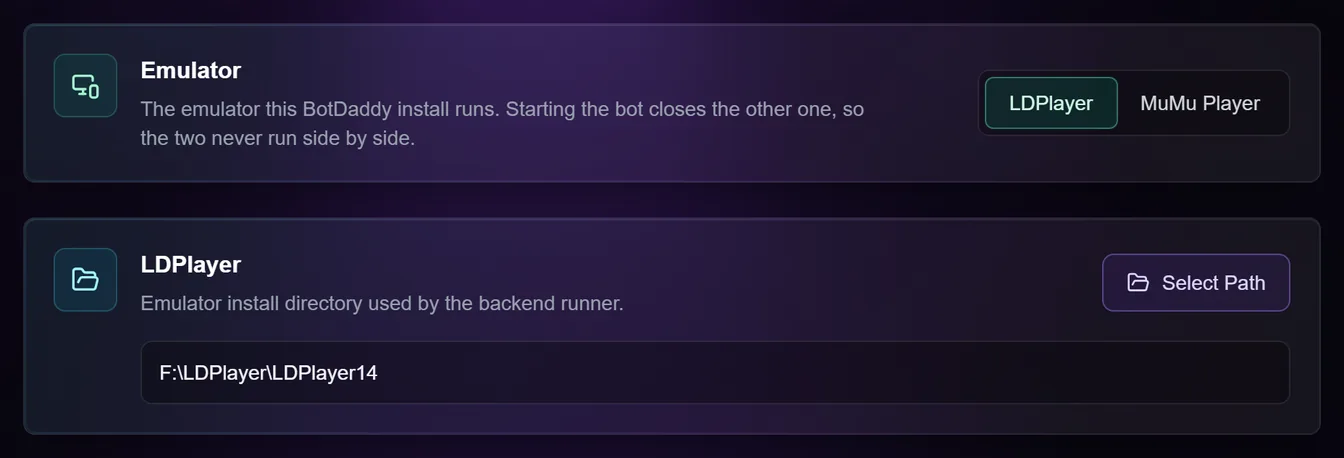
Emulator
Which emulator this BotDaddy install runs: LDPlayer or MuMu Player. One install runs one of them, and starting the bot always closes the other, because the two can't share a PC while the bot runs.
The switch takes effect straight away (it doesn't wait for Save Settings), and it's greyed out while the bot is running.
Your accounts follow the switch. Each account remembers one instance per emulator: it goes back to the one it already had there, and an account with none is put on the instance with the same number. The card says how many were moved, and how many are still waiting because that number doesn't exist yet or another account is already on it. The full rules are in MuMu Player setup.
With MuMu Player chosen, the card shows three more things:
- MuMu's folder. BotDaddy finds it by itself from MuMu Player's installer.
To change it, press Select Folder and pick the folder MuMu Player is
installed in: the one with a folder called
nx_maininside it. A folder that isn't a MuMu Player install is refused with a message, and the old one is kept. - Android 12. BotDaddy runs on MuMu's Android 12 instances only. The card says Installed or Not installed, with an Install Android 12 button for the second.
- Graphics: DirectX or Vulkan. How MuMu draws the game. DirectX is the default and keeps working with your monitor switched off. Vulkan (MuMu's High performance mode) needs a monitor connected and switched on; with the monitor off, new instances can't start. A change reaches each instance the next time it starts, even while the bot is running.
LDPlayer
The folder your LDPlayer install lives in — the one containing
ldconsole.exe, typically C:\LDPlayer\LDPlayer9 or C:\LDPlayer\LDPlayer14.
In the desktop app you can browse for it rather than typing it.
Both LDPlayer 9 and 14 are supported; the app works out which you have from the path. With MuMu Player chosen, this card says it isn't in use and keeps the path, so switching back needs no setup.
Everything the bot does to an emulator goes through the emulator's own tools rather than by clicking on your desktop, so emulator windows don't need to be visible or focused, and you can keep using the machine while the bot runs.
Antivirus exclusions
Windows Security scans every file as it's opened, and an emulator reads its whole virtual disk every time it boots. This card checks whether Windows Security is told to skip the folders and programs involved — your emulator's folder and programs, and BotDaddy's own — and lists anything missing.
Add exclusions adds them in one click. It's the only thing that ever changes your security settings, it only ever adds, and it follows the emulator you've chosen. BotDaddy has to be running as administrator to change them. If another antivirus is in charge, the card says so and lists the folders to add there yourself.
The worker count
How many accounts run at the same time — not how many accounts you can have. You can keep as many accounts and instances as your disk holds; this decides how many are awake at once.
There is no correct number anybody can give you. It depends on your CPU, RAM, disk speed and whatever else the machine is doing. Find it by testing: start low, watch a full cycle finish, raise it a step, watch again. When boots start timing out or cycles get noticeably slower, you've gone one step past your limit — come back down.
Every concurrent account is a full Android virtual machine. The usual failure mode for a new setup is running more at once than the PC can actually boot. Fewer accounts that finish reliably beats more that thrash.
If you use account tabs, this total is what the tabs divide between them. It's also how many instances Rebuild Instances and Update / Install Game work on at once.
Fast Boot and Parallel Boot are the two switches beside the number.
Advanced timeouts
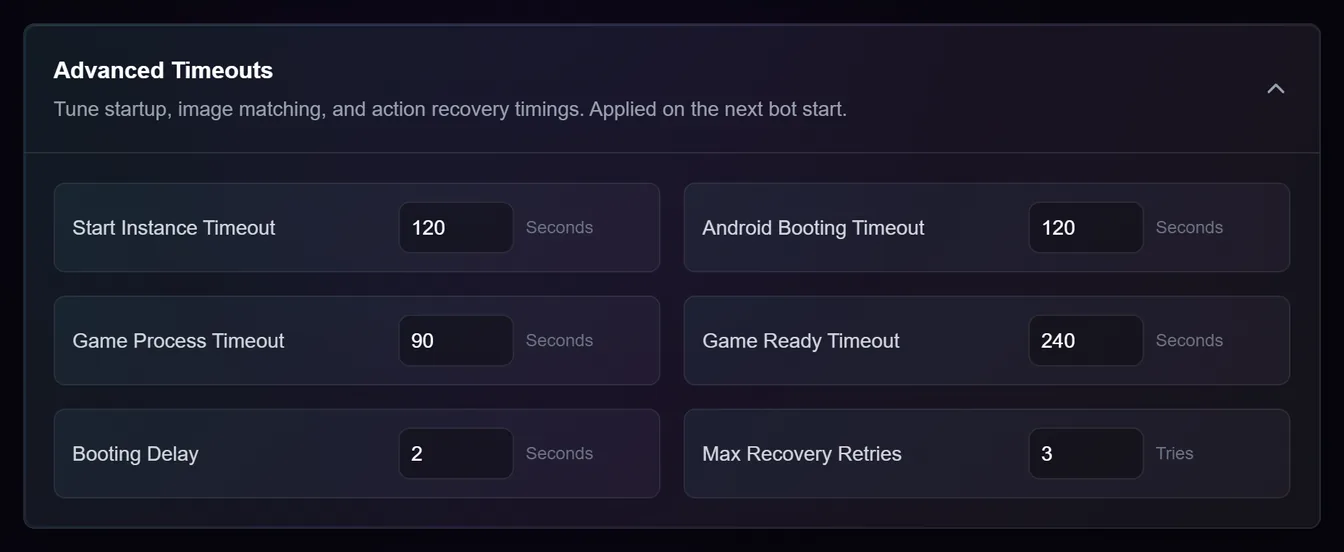
| Setting | What it bounds | Default |
|---|---|---|
| Start Instance Timeout | Waiting for the emulator to bring an instance up | 120 s |
| Android Booting Timeout | Waiting for Android inside it to finish booting. Rebuild Instances and Update / Install Game use it too, for each boot they try. | 120 s |
| Game Process Timeout | Waiting for the game to start after launch | 90 s |
| Game Ready Timeout | Waiting for the game to reach a usable screen | 240 s |
| Booting Delay | A pause built into the boot sequence | 2 s |
| Max Recovery Retries | Recoveries allowed before an account is parked | 3 tries |
All of these apply on the next bot start, not immediately. Save Settings writes them; a run already going keeps the values it started with.
Raise them if a slow machine is being cut off mid-boot. Raising them does not make anything faster — it only stops the bot giving up on something that was going to work anyway.
Troubleshooting
Instances keep timing out. Lower the worker count first — that's the common cause by a wide margin. Only if a single instance times out with nothing else running is it worth raising the timeouts.
I raised the timeouts and nothing improved. Then the timeouts weren't the problem. A machine that can't boot an instance in the default budget is usually short of RAM or running too many at once.
No instances show on the Accounts screen. The emulator's folder is wrong, or the emulator has moved. Update the LDPlayer path, or MuMu Player's folder, here.
Settings says MuMu Player was not found. Install MuMu Player with its own installer (the global version from mumuplayer.com), then choose it again.
The emulator switch is greyed out. The bot is running. Stop it first.
MuMu instances won't start while my monitor is off. Graphics is set to Vulkan. Switch it to DirectX.
I changed the worker count mid-run. Saved, and applied at the next Start. The running session keeps the split it began with.
I use tabs and lowered the total. Main keeps one worker, the tabs are served left to right, and the last ones get fewer than they asked for. The tab strip shows the squeeze in red.