
Running 100 accounts on a small disk
An emulator instance is a full Android VM, so a hundred of them is a hundred copies of Android. On a 50 GB disk that was never going to fit — and it does not need to. A hundred accounts run perfectly well on four instances, because accounts take turns on an instance rather than each needing one.
This guide assumes you've completed Viking Rise bot setup.
The whole plan in one line. Work out how many instances you can run, make that many, share your accounts evenly between them, and give every account exactly one Account Switch. Everything below is the detail.
Why extra accounts cost no extra disk
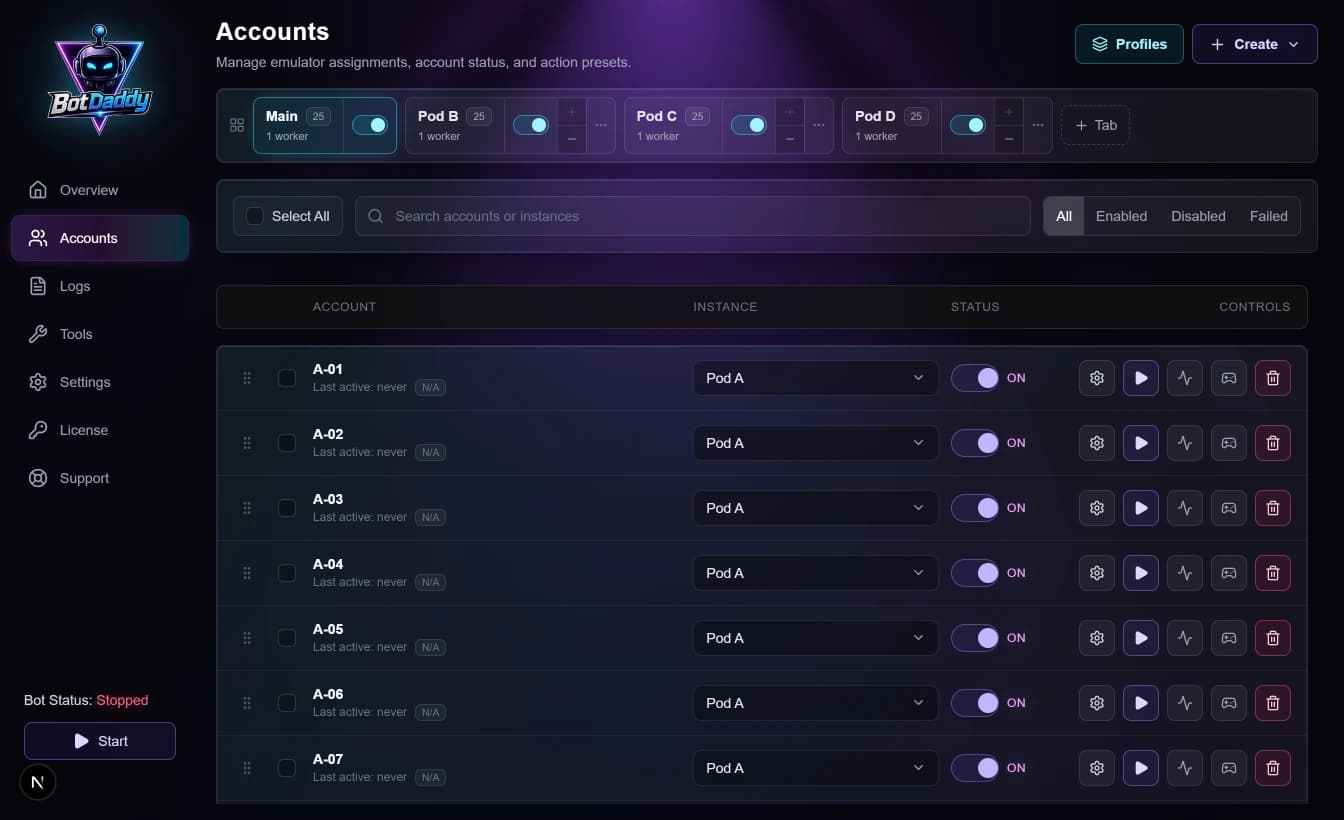
What fills an instance is Android itself, the game, and the roughly 2 GB of game files that download the first time anybody logs in. All of that belongs to the instance. Every account that signs in afterwards reads the same files.
So twenty-five accounts on one instance take up exactly what one account would. The only number that multiplies your disk usage is how many instances you make — which is why that is the one decision to get right.
Why the bot closes the game between accounts
Switching from one IGG account to another repeatedly, without ever closing the game, makes it slower and slower until you are watching loading circles. That is the game's servers objecting, and no bot setting fixes it.
BotDaddy avoids it by construction. When an account finishes its list, the bot shuts the instance down, and only then does the next account bound to that instance get its turn — booting the game fresh and signing in clean. Each account gets one sign-in in its own session, so nothing accumulates.
You do not switch this on. It is what happens when several accounts share an instance, which is exactly what this guide has you set up.
Step 1 — How many instances?
You have two ceilings. Take the lower one.
Your disk. Budget about 10 GB per instance once the game and its files are in. Setting up briefly needs more than running does, because copying the game files from one instance to another stages a temporary archive of a couple of gigabytes.
| Instances | Disk once running | Peak while setting up | Fits in 50 GB? |
|---|---|---|---|
| 5 | 50 GB | ~52 GB | No — the copy step runs out of room |
| 4 | 40 GB | ~42 GB | Yes, with room to grow |
| 3 | 30 GB | ~32 GB | Yes, comfortably |
Your PC. However much disk you have, there is a limit to how many instances run at once before everything crawls. Open the number you are considering by hand, with the game running in each, and see whether they stay responsive. See System requirements for what the engine needs.
Making more instances than your PC can run at once buys you nothing. Four instances with two running at a time finishes a round at exactly the same speed as two instances with two running at a time — and uses 20 GB more disk. So if your PC comfortably runs two, make two and put fifty accounts on each.
Ten gigabytes is an estimate. Build your first instance, finish its first login, then look at how big it really got before committing to the rest.
Step 2 — Which switch does each account need?
Every account needs one Account Switch, but which fields you fill in depends on how your accounts are organised. Filling in the wrong ones is the most common way this setup silently does nothing.
| What you have | Mode | Fill in | Ignored | Needs a saved login? |
|---|---|---|---|---|
| Several characters under one IGG login | Character | Position | ID | No |
| Several IGG logins, already signed in on that instance | IGG | ID | Position | No |
| A separate IGG email per account | IGG | ID, tick Change email | Position | Yes |
A hundred separate accounts usually means the third row. If some of your accounts are extra characters under a login you already use, those take the first row instead — the mode is per account, so a fleet can mix freely.
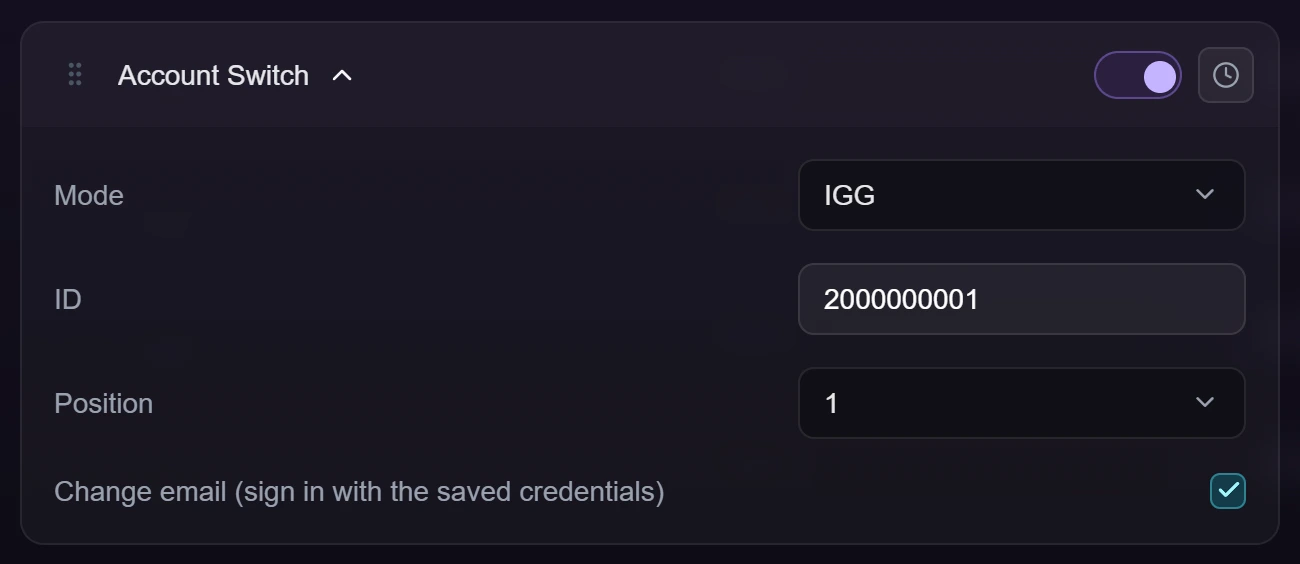
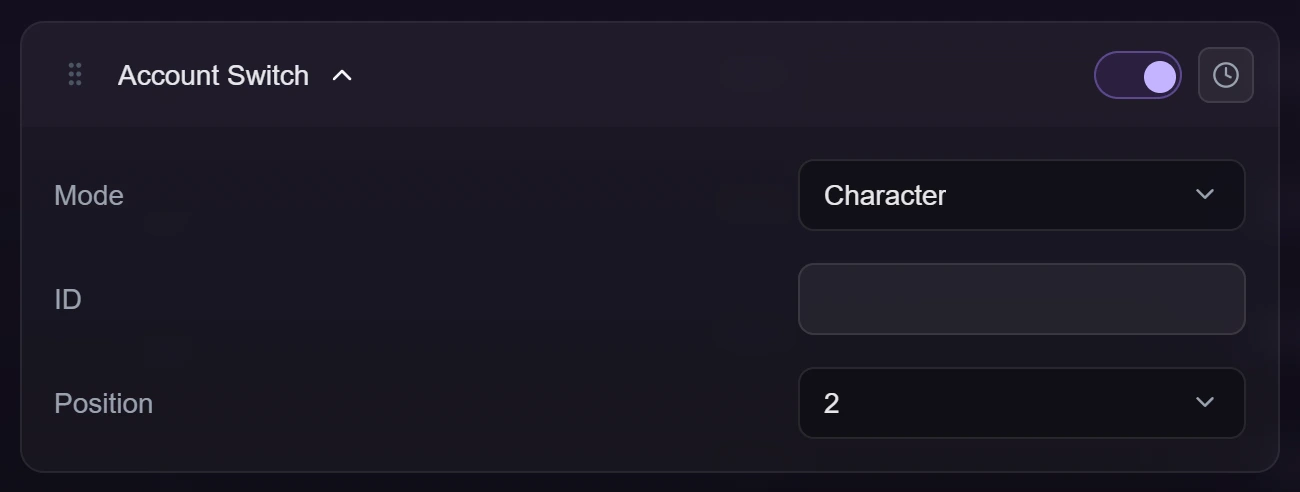
Mode starts on Character. If you never touch the dropdown, the bot will not change IGG account at all — it runs as whoever was already signed in, and nothing about that looks like a failure. Check this field on every account after copying a list across.
The modes are covered in full in Account switching.
Step 3 — Build the instances and copy the game files
Use MuMu Player. It can give back space inside an instance that is no longer in use; LDPlayer cannot, so its instances only ever grow. On a tight disk that decides it.
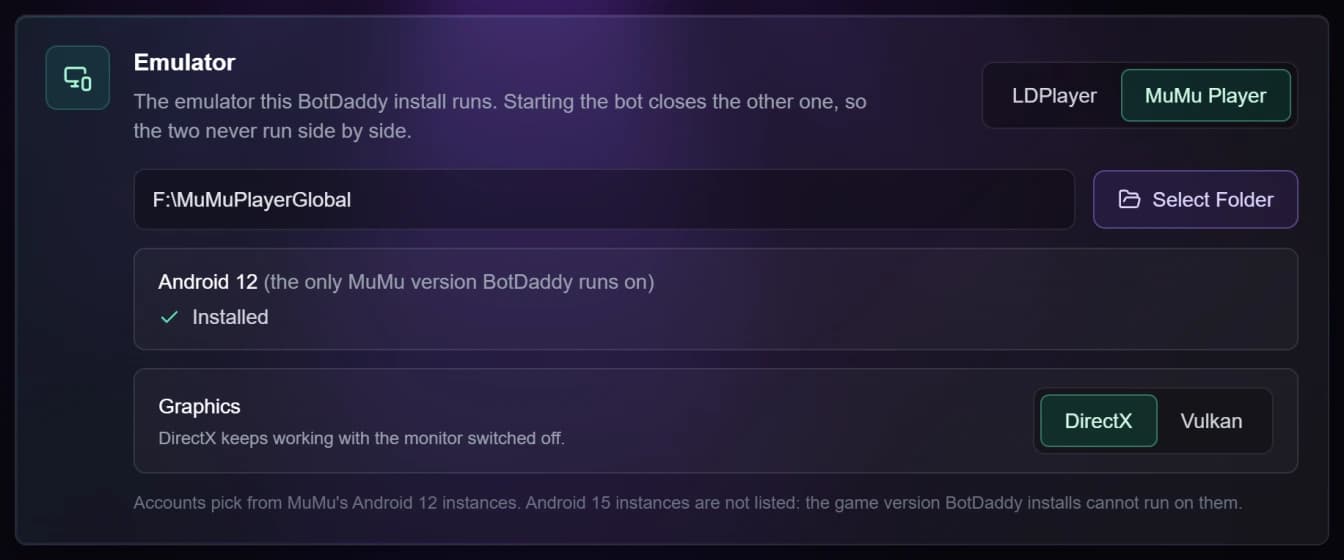
Create the instances in MuMu's own window, then install the game on one of them and log in by hand once. Let it finish downloading completely.
Now copy those files to the rest. In Tools ▸ Rebuild Instances, tick the other instances, choose the finished one under Copy game files from, and press Seed Selected. This skips the download on every other instance, and stops each one inflating its disk to hold it.
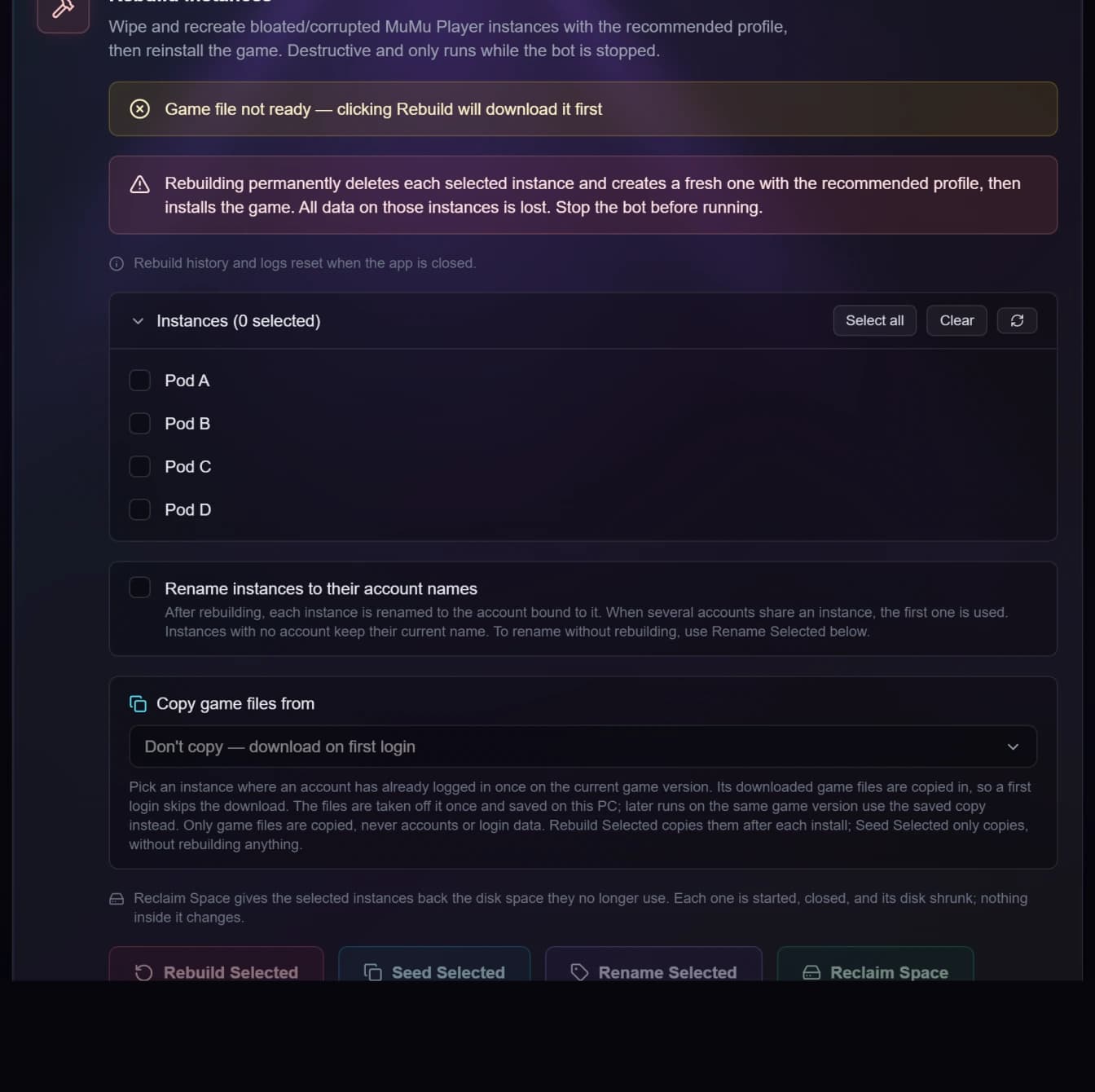
Then select every instance and press Reclaim Space. The copy leaves space that is finished with but not yet handed back. Do this after game updates too.
Leave Rename instances to their account names unticked: with twenty-five accounts on an instance it names it after whichever one happens to be first.
Step 4 — Create the accounts and share them out
On the Accounts screen, create your accounts and set each one's instance in the Instance column, spreading them evenly — twenty-five per instance if you built four.
Step 5 — Set one account up, then copy it
Build one account's list properly, then use copying actions to apply it to the rest.
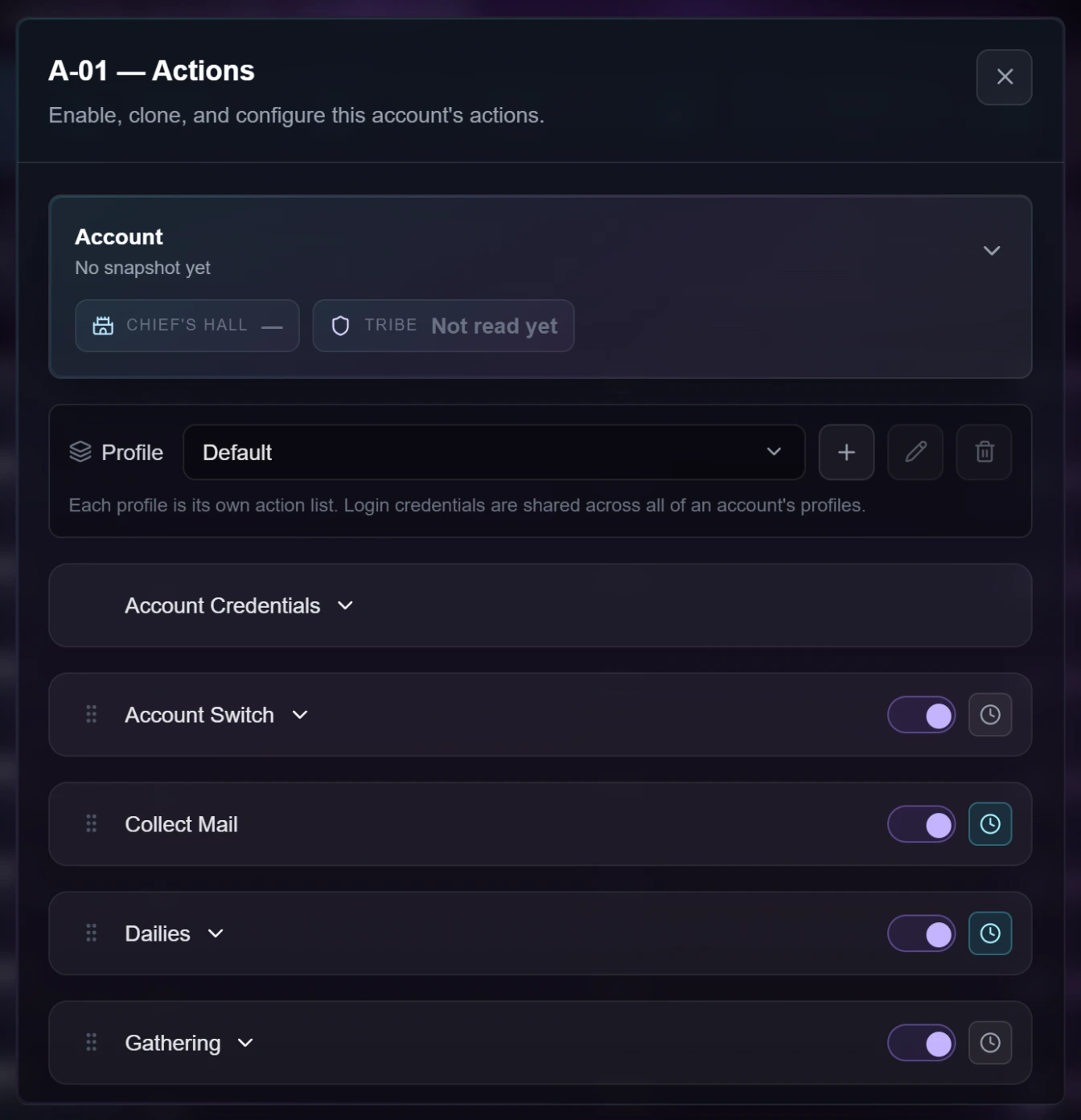
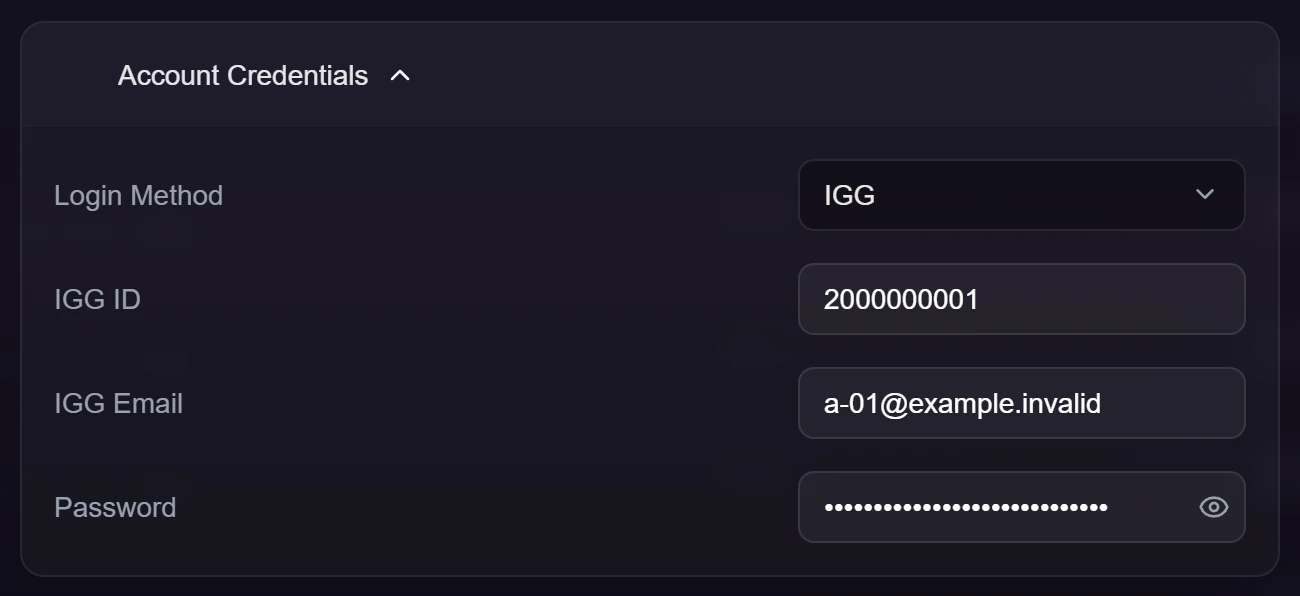
Account Credentials holds the one login for this account. Account Switch reads the email and password from here, so on a change-email setup it has to be filled in.
Copying a list copies the on/off switches with it, so turn off anything a farm should not be doing before you spread it to ninety-nine other accounts. Then go through each account and fill in its own ID — and its own email and password if you are using change-email. Those are different per account and cannot be copied.
Step 6 — Workers, and whether to use tabs
In Settings ▸ Runtime, set the number of accounts that run together. Match it to how many instances you built.
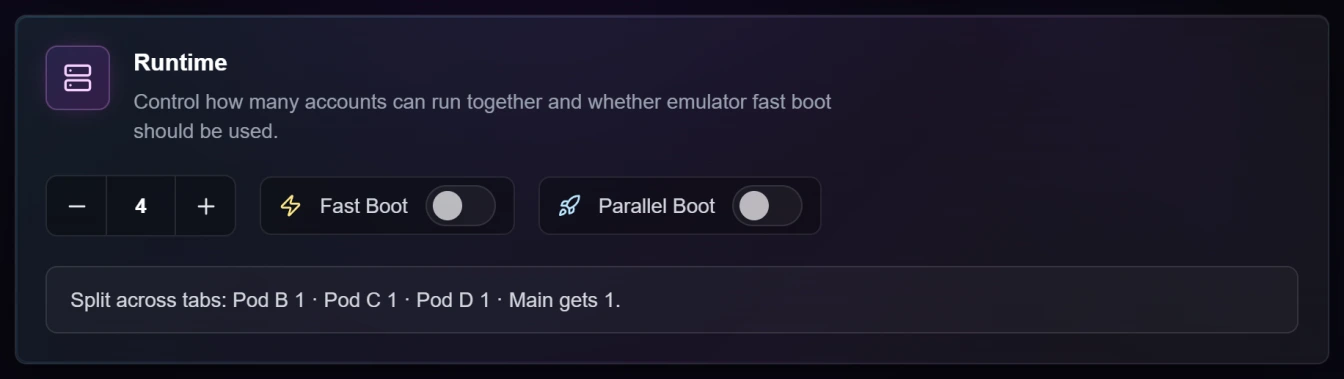
Account tabs are optional here. Giving each instance its own tab with one worker keeps the fleet tidy and makes it obvious which accounts are affected when one instance misbehaves.
Only use tabs if your worker number is at least the number of tabs. A tab holds its own worker, so if there are not enough to go round, the last tab gets none and its accounts do not run at all that session. If your PC runs fewer instances at once than you have built, skip tabs entirely: one list, set the worker number to what your PC handles, and the bot works through every account on whichever instances are free.
Before you start it
- Every account has its own ID filled in, and its email and password if you are using change-email
- Every Account Switch is in the right mode for how that account is reached
- Every account has one Account Switch, directly under Credentials
- Each account points at the right instance
- The worker number matches your instance count, and either every tab has a worker or you are not using tabs
- You have run Reclaim Space and have a few gigabytes free
Watch the first round rather than walking away.
When something is wrong
| What you see | What it usually is |
|---|---|
| Accounts work, but on the wrong city | Mode left on Character when the account needs IGG, or an empty email on a change-email switch — both skip the switch silently |
| An account stops and parks itself | Its IGG ID isn't in the list it was looking in. Check the ID, and whether Change email should be ticked |
| A whole group of accounts never runs | More tabs than workers — raise the worker number or remove the tabs |
| Everything is slow and showing loading circles | Too many Account Switches inside one account's list. One per account |
| An instance fills up after a game update | Update one, copy the files to the rest, then Reclaim Space |
How long a round takes
Every account boots an instance, loads the game, signs in and then works — so that start-up is paid once per account rather than once per instance. That is the cost of a small disk, and it is the same teardown that keeps the sign-ins clean.
| Per account | Roughly |
|---|---|
| Start the instance | 25–45 s |
| Load the game to the city | 60–90 s |
| Sign in and switch | 30–75 s |
| Run its actions | 2–5 min |
| Close the instance | 10–15 s |
| One account, start to finish | 5–9 min |
A hundred accounts four at a time is roughly two to four hours a round. Two rounds a day is a comfortable target: put the heavier actions on a once-a-day schedule so a second round does not repeat them, and give the fleet a rest period between rounds.